顯示具有 開發筆記 標籤的文章。 顯示所有文章

2015年4月23日 星期四

iOS: TestFlight Beta Testing

since: 2015/04/23
update: 2015/04/23
reference:
1. TestFlight Beta Testing - App Store - Apple Developer
2. [Xcode] 在 iTunes Connect 使用 TestFlight 測試

A. 登入 iTunes Connect, 新增 iOS App
     1. 登入 iTunes Connect, 點選 "我的 App"

     2. 點選右上方的 "+", 以增加 "新的 iOS App"

     3. 填入此 App 的相關資料後, 按下 "建立"
         - 名稱: 顯示在 App Store 上的名稱.
         - 版本: 與 Xcode 上此 App 專案設定的版本一致.
         - 主要語言: 繁中
         - SKU: 識別用名稱, 不會顯示在 App Store 上
         - 套裝組 ID: App 的 bundle ID (不可更改, 與 Xcode 上一致.)

-----------------------------------------------------------------------------------------------

B. App 相關圖檔的製作:
    以下二種方式之一:
    1. 利用網路提供的服務產生:
        App Icon Generator for IOS and Android

    2. Mac App Store - Asset Catalog Creator (個人採用的方式)
        a. 打開 app 後, 將一張圖片拖拉到 "drop an image here" 裡,
            > 選擇圖檔輸出目錄(ex: /Users/Lanli/Desktop)
            > 點選 "iOS Icon"
            > 點選 "Create Asset Catalog"

       b.接著, 點選 "iOS Iaunch",
           > 選擇圖檔呈現方式
           > 點選 "Create Asset Catalog"

       c. 結果:
           在桌面產生 Media.xcassets 資料夾, 裡面含有:
           AppIcon.appiconsetLaunchImage.launchimage 圖檔資料夾

       d. 開啟 XcodeMedia.xcassets 資料夾拖拉到專案上:
           > 並點選專案, 檢查右方的圖檔設定是否已設定好了(點選紅框處箭頭)
-----------------------------------------------------------------------------------------------

C. 將 App 打包歸檔
     1. 確認目前 App 可正常編譯:
         Xcode > Product > Build

     2. 編輯 Scheme:
          Xcode > Product > Scheme > Edit Scheme...

     3. 點選左方的 "Archive", 將其 Build Configuration 設為: "Release", 按下 "Close"

     4. 確認 iPhone 沒有連結 Mac, 編譯目標為: 專案名稱 > iOS Device ,
         接著開始將 App 打包歸檔: Product > Archive

-----------------------------------------------------------------------------------------------

D. 驗證 App
     1. 按下 "Validate"

     2. 選擇開發團隊 > Choose

     3. 按下 "Validate"

     4.  "允許" privateKey 進行簽署(需要二次)

     5. "Done"

-----------------------------------------------------------------------------------------------

E. 將 App 提交到 App Store
    1. 點選 "Submit to App Store" > 選取開發團隊 > "Choose"

    2. "Submit"

    3. "允許" privateKey 進行簽署(需要二次)

    4. "Done"

  -----------------------------------------------------------------------------------------------

F. 邀請使用者參與預先發行App的測試
    1. iTunes Connect > 我的 App > 選取 "準備提交" 的 App
        > 點選 "預先發行" > 啟用右方 "TestFlight Beta 版測試"


    2. iTunes Connect使用者和職能 > 新增使用者(按 "+" 號)


    3. 填好資料後, 按 "下一頁"

    4. "下一頁"

    5. 選取職能: 測試人員可以選擇 "技術", 按 "下一頁" > "儲存"

    6. 完成

-----------------------------------------------------------------------------------------------

G. 測試 App
    1. 測試者會收到一封確認信, 請點 activate your account, 並用 Apple ID 登入
         iTunes Connect 即完成帳號確認.

    2. 回到 iTunes Connect: 使用者和職能 > TestFlight Beta 版測試人員 > 內部 >
        選取測試人員後, 按下 "儲存"


    3. iTunes Connect > 我的 App > 準備提交的 App > 預先發行 > 內部測試人員
        > 選取測試人員後, 按下 "邀請"

    4. 請測試人員iPhone 上收信, 並點取 "Open in TestFlight",
        會安裝 TestFlight App(需要 iOS 8 以上) , 並可下載測試的 App.


    4. 進入 TestFlight, 便可以看到目前參與測試App   

多台 Mac 共用一張 Xcode 開發憑證

since: 2015/04/22
update: 2015/04/23

相關參考:
1. I touchs: Join iOS Developer Program
2. I touchs: 產生可於實體 iDevice 上運行的 App 之 (一) 取得憑證
3. I touchs: 產生可於實體 iDevice 上運行的 App 之 (二) 註冊設備
4. I touchs: 產生可於實體 iDevice 上運行的 App 之 (三) 新增 App ID
5. I touchs: 產生可於實體 iDevice 上運行的 App 之 (四) 新增 Provisioning Profile

6. I touchs: 從 Xcode 產生給測試人員使用的 .ipa 檔案
7. I touchs: Lala's Program Note 實作記錄: 34. App 上架

A. 輸出 iPhone 開發憑證
     1. 在安裝好憑證的那台 Mac 上, 打開啟 "鑰匙圈存取" 應用程式:
         類別 > 憑證 > 點選 "iPhone Developer ..."  憑證 >
         右鍵 > 輸出 "iPhone Developer ..."  憑證

    2. 輸入儲存名稱, 選擇儲存位置 > 儲存

     3. 輸入二次相同的存取此憑證之密碼.

     4. 在輸入一次 Mac 登入密碼即完成憑證的輸出.

-----------------------------------------------------------------------------------

B. 在另一台 Mac 上輸入憑證

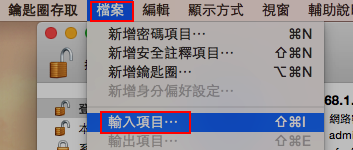
    1. 打開啟 "鑰匙圈存取" 應用程式 > 檔案 > 輸入項目...


    2. 選取剛剛輸出的憑證檔, 確認目標鑰匙圈為: 登入 > "打開"

    3. 輸入存取此憑證之密碼 > "好"

    4. 確認憑證:
        憑證 > "iPhone Developer ..."  憑證

-----------------------------------------------------------------------------------

C. 到 Apple 開發網站下載裝置憑證
     1.登入: Apple Developer

     2. 點選 "Certificates, Identifiers & Profiles":

     3. 點選 "Provisioning Profiles":

     4. Development > 下載並安裝 "裝置憑證" 檔案

2013年3月16日 星期六

Tab View: Different Tab Content in different Activity

since: 2013/03/16
update: 2013/03/16

reference:
Chickenrice's Workshop: [Android] 建立Tab View的三種方式(下)

A. 在專案的 res/layout 目錄下新增 tab1.xmltab2.xml
// tab1.xml
<?xml version="1.0" encoding="utf-8"?>
<LinearLayout xmlns:android="http://schemas.android.com/apk/res/android"
    android:layout_width="match_parent"
    android:layout_height="match_parent"
    android:orientation="vertical" >

    <TextView android:id ="@+id/tab1_text"
        android:layout_width="wrap_content"
        android:layout_height="wrap_content"
        android:text="I'm Tab 1"
        android:textSize="18sp" /> 

</LinearLayout>


// tab2.xml
<?xml version="1.0" encoding="utf-8"?>
<LinearLayout xmlns:android="http://schemas.android.com/apk/res/android"
    android:layout_width="match_parent"
    android:layout_height="match_parent"
    android:orientation="vertical" >
   
    <TextView android:id ="@+id/tab2_text"
        android:layout_width="wrap_content"
        android:layout_height="wrap_content"
        android:text="I'm Tab 2"
        android:textSize="18sp" /> 
   
</LinearLayout>


---------------------------------------------------------------------------

B. 在專案的 src 套件目錄下新增 Tab1.javaTab2.java:

// Tab1.java
package home.android.hello;

import android.app.Activity;
import android.os.Bundle;

public class Tab1 extends Activity {

    @Override
    protected void onCreate(Bundle savedInstanceState) {
        // TODO Auto-generated method stub
        super.onCreate(savedInstanceState);
        setContentView(R.layout.tab1);
    }    

}


// Tab2.java
package home.android.hello;

import android.app.Activity;
import android.os.Bundle;

public class Tab2 extends Activity {

    @Override
    protected void onCreate(Bundle savedInstanceState) {
        // TODO Auto-generated method stub
        super.onCreate(savedInstanceState);
        setContentView(R.layout.tab2);
    }

}

---------------------------------------------------------------------------

C. 修改專案的 AndroidManifest.xml 檔案
     新增以下的設定:
....

        <activity android:name="home.android.hello.Tab1"
                  android:label="這是Tab1" >
        </activity>
       
        <activity android:name="home.android.hello.Tab2"
                  android:label="這是Tab2" >
        </activity>  
     
       
    </application>

</manifest>


---------------------------------------------------------------------------

D. 修改專案 src 套件目錄下的 MainActivity.java 如下:
package home.android.hello;

import android.os.Bundle;
import android.app.AlertDialog;
//import android.app.Activity;
import android.app.TabActivity;
import android.content.Intent;
import android.view.Menu;
import android.widget.TabHost;
import android.widget.TabHost.OnTabChangeListener;


public class MainActivity extends TabActivity implements OnTabChangeListener {   

    @Override
    protected void onCreate(Bundle savedInstanceState) {
        super.onCreate(savedInstanceState);


        //取得Tabhost參考
        TabHost tabHost = getTabHost();       
       
        //設定各tab頁面
        tabHost.addTab(tabHost
        .newTabSpec("tab1")
        .setIndicator("TAB1")
        .setContent(new Intent(this, Tab1.class))
        );
                     
        tabHost.addTab(tabHost
        .newTabSpec("tab2")
        .setIndicator("TAB2")
        .setContent(new Intent(this, Tab2.class))
        );
       
        tabHost.setOnTabChangedListener(this);   


    }

    @Override
    public boolean onCreateOptionsMenu(Menu menu) {
        // Inflate the menu; this adds items to the action bar if it is present.
        getMenuInflater().inflate(R.menu.main, menu);
        return true;
    }


    @Override
    public void onTabChanged(String tabId) {
        // TODO Auto-generated method stub
        new AlertDialog.Builder(this).setTitle("Hint").setMessage(tabId)
        .setPositiveButton("OK", null).show();
       
    }

   
}

2013年3月13日 星期三

How to support all the different resolutions of android products

since: 2013/03/13
update: 2013/03/13

reference:
馬克周.技術隨筆: [Android] 滿足各種不同螢幕尺寸


A. 說明:
     1. 先不考慮不同裝置大小的版面配置, 在此先以依裝置大小來縮放版面的方式處理.
         屬於通用的處理方式, 並不能保證任何 android 裝置都能適用.
 
     2. 在版面設計上長度(位置)單位要使用 spdp

----------------------------------------------------------------------------------------

B. 假設 UI 設定檔(activity_main.xml)有ㄧ TextView 元件如下:
    <TextView id="@+id/txtHello"
        android:layout_width="wrap_content"
        android:layout_height="wrap_content"
        android:layout_marginLeft="25sp"
        android:layout_marginTop="45sp"
        android:text="Hello World !"
        android:textSize="20sp"
        android:textColor="#000"/>

----------------------------------------------------------------------------------------

C. 在 Eclipse 的 Package Explore 專案中的 res/ 目錄下新增以下資料夾:
     values-hdpi, values-ldpi, values-mdpivalues-xdpi
     (p.s. 預設只有: values 資料夾)
     分別新增 dimens.xml 如下: (在此以 res/values/res/values-hdpi/ 為例)

// ---> res/values/dimens.xml 的內容
<?xml version="1.0" encoding="utf-8"?>
<resources>
    <!-- normal dpi -->
    <dimen name="txtHello_layout_marginLeft">25sp</dimen>
    <dimen name="txtHello_layout_marginTop">45sp</dimen>
    <dimen name="txtHello_textSize">20sp</dimen>
</resources>


// ---> res/values-hdpi/dimens.xml 的內容
<?xml version="1.0" encoding="utf-8"?>
<resources>
    <!-- hdpi  -->
    <dimen name="txtHello_layout_marginLeft">50sp</dimen>
    <dimen name="txtHello_layout_marginTop">108sp</dimen>
    <dimen name="txtHello_textSize">32sp</dimen>   
</resources>

----------------------------------------------------------------------------------------

D. 將原本 UI 設定檔的 TextView 元件修改如下:
    <TextView android:id="@+id/txtHello"
        android:layout_width="wrap_content"
        android:layout_height="wrap_content"
        android:layout_marginLeft="@dimen/txtHello_layout_marginLeft"
        android:layout_marginTop="@dimen/txtHello_layout_marginTop"
        android:text="Hello World !"
        android:textSize="@dimen/txtHello_textSize"
        android:textColor="#000"/>

2013年2月11日 星期一

Installing the Android SDK on the Mac OS X


since: 2013/02/11
update: 2013/02/21


A. 新增軟體開發的資料夾
     新增一個用來放置所有開發軟體的資料夾(Java 除外)
       ex: AndroidDevMac (在此, 資料夾位置為: /Lanli/AndroidDevMac)

-------------------------------------------------------------------------------------------

B. 安裝JAVA
     下載 JAVA SDK: http://www.oracle.com/technetwork/java/javase/downloads/
     , 並安裝. (在此為: jdk-7u13-macosx-x64.dmg)

-------------------------------------------------------------------------------------------

C. Eclipse

    1. 下載 Eclipse Classic: http://www.eclipse.org/downloads/
        採用版本: eclipse-SDK-4.2.1-macosx-cocoa-x86_64.tar.gz

    2. 解壓縮後將整個 eclipse 資料夾放到 /Lanli/AndroidDevMac 下

-------------------------------------------------------------------------------------------

D. Android SDK
   1. 下載 Android SDK: http://developer.android.com/sdk/
      > USE AN EXISTING IDE
         採用版本: android-sdk_r21.0.1-macosx.zip

   2. 解壓縮後將整個 android-sdk-macosx 資料夾放到 /Lanli/AndroidDevMac 下

   3. 將工具的路徑, 加到系統的 PATH 變數裡.
       開啟終端機
       $ cd ~
       $ sudo vi .profile
       $ export PATH=/Lanli/AndroidDevMac/android-sdk-macosx/tools:/Lanli/AndroidDevMac/android-sdk-macosx/platform-tools:$PATH
      
       關閉終端機, 再重新開啓:
       $ echo $PATH

-------------------------------------------------------------------------------------------

E. 安裝 Android Development Tools (ADT) plugin
     1. 開啟 Eclipse (選擇 workspace, 在此為 /Lanli/workspace)

     2. Help > Install New Software... > Add >

        Name: ADT
        Location: https://dl-ssl.google.com/android/eclipse/

        > OK
        > Select All (會將 Developer ToolsNDK Plugins 全選)
        > Next > Next
        > 勾選: I accept the terms of the license agreements
        > Finish (開始下載並安裝)
        > Security Warning > OK
        > Restart Eclipse > Yes

     3. Eclipse 重開後,
         a. 先關閉出現的警告(按 Close)
         b. 與取消安裝新的 Android SDK(按 Cancel)
             (之後會再自行設定)

-------------------------------------------------------------------------------------------

F. Android SDK Setting
   1. 開啟 Eclipse
 
   2. Eclipse > 偏好設定 >
       Android > SDK Location: Browse...
     
      /Lanli/AndroidDevMac/android-sdk-macosx
     
      > OK
      > Close

-------------------------------------------------------------------------------------------

G. Android SDK Manager
   1. 開啟 Eclipse
 
   2. Window > Android SDK Manager
 
   3. 可以勾選所有的項目, 在此勾選: Tools, Android 2.2, Android 4.2Extras
      > 按下 "Install xx packages..."
      > Accept All
      > Install
      (開始下載並安裝)
    
      > 完成後, 關閉 Eclipse 

-------------------------------------------------------------------------------------------

H. Android Virtual Device (AVD) Setting
    1. 開啟 Eclipse
 
    2. Window > Android Virtual Device Manager
       > New
       > AVD Name: AVD-2.2-480x800
          Device: 4.0" WVGA(480x800:hdpi)
          Target: Android 2.2 - API Level 8
          取消勾選: Hardware keyboard present
                            Display a skin with hardware controls
          SD Card: size: 16 MiB
       > OK
       > Start > Lanuch (啟動)

-------------------------------------------------------------------------------------------

I. UTF-8 Setting
   1. Eclipse > 偏好設定 > General > Workspace

   2. Text file encoding: Other: UTF-8
      > OK

-------------------------------------------------------------------------------------------

J. 備註:
   當更改整個 AndroidDevMac 資料夾位置時, 須再次檢查 Eclipse:
   1. Eclipse > 偏好設定 > Android > SDK Location:
 
   2. Eclipse > 偏好設定 > Java > Install JREs:   

2013年2月10日 星期日

Seting up an Android Development Environment


since: 2013/02/10
update: 2013/02/10


A. 新增軟體開發的資料夾
   1. 在任意槽新增一個用來放置所有開發軟體的資料夾
       ex: EclipseAndroidDev
     
   2. 在此, 資料夾位置為: C:\Lanli\EclipseAndroidDev
       並在 EclipseAndroidDev 下新增 JDK 資料夾.

-------------------------------------------------------------------------------------------


B. Java SDK
   1. 下載 JAVA SDK: http://www.oracle.com/technetwork/java/javase/downloads/
       採用版本: Java SE 7u13 及 Java SE 7 Documentation
     
   2. 預設安裝位置: C:\Program Files\Java\jdk1.7.0_13
      
   3. 將 C:\Program Files\Java\jdk1.7.0_13 下的全部檔案及
       jdk-7u11-apidocs.zip(Java文件檔)
       copy 到 C:\Lanli\EclipseAndroidDev\JDK
       p.s. 至此, 便可以將 JAVA SDK 從控制台中移除.
              (可以只保留額外安裝的 JRE C:\Program Files\Java\jre7, 如果有的話)

-------------------------------------------------------------------------------------------
     
C. Eclipse
   1. 下載 Eclipse IDE for Java Developers: http://www.eclipse.org/downloads/
       採用版本: eclipse-java-juno-SR1-win32-x86_64
     
   2. 解壓縮到 C:\Lanli\EclipseAndroidDev 下(會自動產生 eclipse 資料夾)

-------------------------------------------------------------------------------------------

D. Android SDK
   1. 下載 Android SDK: http://developer.android.com/sdk/
      > DOWNLOAD FOR OTHER PLATFORMS > Windows >
         android-sdk_r21.0.1-windows.zip
         採用版本: Android SDK r21.0.1
     
   2. 解壓縮 android-sdk_r21.0.1-windows.zip 到 C:\Lanli\EclipseAndroidDev 下
       (會自動產生 android-sdk-windows 資料夾)

-------------------------------------------------------------------------------------------

E. 新增批次檔: 
   1. 在 C:\Lanli\EclipseAndroidDev 下新增一個 AndroidDevStart.bat 檔案, 內容如下:
set WORK_HOME=%cd%
set JAVA_HOME=%WORK_HOME%\JDK
set JRE_HOME=%WORK_HOME%\JDK\jre
set ANDROID_SDK_HOME=%WORK_HOME%\android-sdk-windows
set PATH=%JAVA_HOME%\bin;%JRE_HOME\bin;%PATH%
cd eclipse
start eclipse


   2. AndroidDevStart.bat > 傳送到 > 桌面(建立捷徑)

-------------------------------------------------------------------------------------------

F. 安裝 Android Development Tools (ADT) plugin
   1. 點二下 AndroidDevStart.bat 檔案, 開啟 Eclipse
      (選擇 workspace, 在此為 C:\Lanli\workspace)
     
   2. Help > Install New Software... >
      Work with: https://dl-ssl.google.com/android/eclipse/ > Add >

      Name: ADT
      Location: https://dl-ssl.google.com/android/eclipse/

      > OK
      > Select All (會將 Developer Tools 與 NDK Plugins 全選)
      > Next > Next
      > 勾選: I accept the terms of the license agreements
      > Finish (開始下載並安裝)
      > Security Warning > OK
      > Restart Eclipse > Yes
     
   3. Eclipse 重開後,
      a. 先關閉出現的警告(按 Close)
      b. 與取消安裝新的 Android SDK(按 Cancel)
         (之後會再自行設定)

-------------------------------------------------------------------------------------------

G. Android SDK Setting
   1. 開啟 Eclipse
  
   2. Window > Preferences >
      Android > SDK Location: Browse...
      C:\Lanli\EclipseAndroidDev\android-sdk-windows
      > OK
      > Close

-------------------------------------------------------------------------------------------

H. Android SDK Manager 
   1. 開啟 Eclipse
  
   2. Window > Android SDK Manager
  
  
   3. 可以勾選所有的項目, 在此勾選: Tools, Android 2.2, Android 4.2Extras
      > 按下 "Install xx packages..."
      > Accept All
      > Install
      (開始下載並安裝)
     
      > 完成後, 關閉 Eclipse

-------------------------------------------------------------------------------------------

I. Android Virtual Device (AVD) Setting 
   1. 開啟 Eclipse
  
   2. Window > Android Virtual Device Manager
      > New
      > AVD Name: AVD-2.2-480x800
         Device: 4.0" WVGA(480x800:hdpi)
         Target: Android 2.2 - API Level 8
         取消勾選: Hardware keyboard present
                            Display a skin with hardware controls
         SD Card: size: 16 MiB
      > OK
      > Start > Lanuch (啟動)

-------------------------------------------------------------------------------------------

J. UTF-8 Setting
   1. Window > Preferences > General > Workspace

   2. Text file encoding: Other: UTF-8
      > OK

-------------------------------------------------------------------------------------------
           
K. 備註:
   當更改整個 EclipseAndroidDev 資料夾位置時, 須再次檢查 Eclipse:
   1. Window > Preference > Android > SDK Location:
  
   2. Window > Preferences > Java > Install JREs:   

2012年9月6日 星期四

Filter4Cam 實作: 30. 濾鏡轉場特效

since: 2012/09/06
update: 2012/09/06

reference:
I touchs: Filter4Cam 學習之 Core Image Filter With CATransition
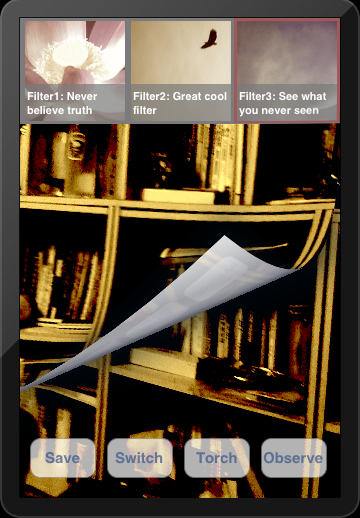
A. 說明
      1. 使用轉場特效的時機:
           a. 原始影像 -> 套用濾鏡.
           b. 套用濾鏡的影像 -> 恢復成原始影像
           c. 套用 A 濾鏡 -> 套用 B 濾鏡

      2. 在這邊有二個時間要處理: 一是 "執行轉場特效" 所花的時間(將設為 1.5 秒),
          另外是, 開始執行轉場特效多久後, 會去作濾鏡的套用.(將設為 0.75 秒)

      3. 在轉場的過程中, 當轉場還未完全結束時(即使看起來好像結束了), 此時去點選
           濾鏡應該是不能發生作用的.
           a. 因此需要在 ViewController 裡宣告一個可用來決定是否可點選濾鏡
               自定 protocol 變數: id<TableSelectionDelegate> tsDelegate;

                並且將此工作委派(delegate)給存放濾鏡 Cell 的 Table (HorizontalTableCell):
                // ViewController => tableView:cellForRowAtIndexPath:
                self.tsDelegate = cell;

           b. 接著, 在存放濾鏡 Cell 的 Table 類別 (HorizontalTableCell) 裡, 宣告依循
                <TableSelectionDelegate> 協定, 並實作 "是否可點選濾鏡" 的功能:

                - (void)allowsTableSelection:(BOOL)allows
                {
                     self.currentTableView.allowsSelection = allows;
                }


           c. 備註:
                原本在 ViewController.h 裡, 直接定義 <TableSelectionDelegate> 協定,
                但是 HorizontalTableCell 類別卻無法參照到, 可能是 Xcode 本身的問題,
                因此將 <TableSelectionDelegate> 協定, 放到一個新增的 header file 來處理.

-------------------------------------------------------------------------------

B. 新增 "可否點選濾鏡表單之代理" 協定
      1. Xcode > File > New > File...
          iOS > Cocoa Touch > Objective-C protocol > Next
          Protocol: TableSelectionDelegate
          > Next

          Targets: Filter4Cam (checked)
          > Create

       2. 開啟 TableSelectionDelegate.h 檔案, 修改如下:
#import <Foundation/Foundation.h>

// "可否點選濾鏡表單之代理" 協定
@protocol TableSelectionDelegate <NSObject>

//@add

- (void)allowsTableSelection:(BOOL)allows;

@end

-------------------------------------------------------------------------------

C. 新增用來標示 "是否要作轉場特效" 的全域變數
      1. 說明: (以下將在之後一一處理)
          a. 在 HorizontalTableCell.m 的 tableView:didSelectRowAtIndexPath: 方法裡,
               無論是 "選取濾鏡" 或 "取消濾鏡",  都會標示要作 "轉場特效":
               self.dataObj.startTransition = YES;

          b. 接著, 在 ViewController.m 的
               captureOutput:didOutputSampleBuffer:fromConnection: 方法裡, 
               會檢查是否要作轉場特效: [self checkTransition];

          c. 承上, 如果是的話, 就會開始執行轉場特效: [self startAnimation];
              當轉場特效結束時, 會自動呼叫: animationDidStop:finished: 方法,
              並且將 "是否要作轉場特效" 標示為否: self.dataObj.startTransition = NO;

      2. 開啟 GlobalDataClass.h 檔案, 修改如下:
....
@interface GlobalDataClass : NSObject
{   
    //@add: array for storage filterCells
    NSMutableArray *filterCellArray;
    BOOL isUsingFilter;        // 有使用濾鏡?
    BOOL startTransition;    // 標示: 是否啟用轉場特效?
....
}

//@add
@property (nonatomic, strong) NSMutableArray *filterCellArray;
@property (assign) BOOL isUsingFilter;
@property (assign) BOOL startTransition;
....


      3. 開啟 GlobalDataClass.m 檔案, 修改如下:
....
//@add
@synthesize filterCellArray = _filterCellArray;
@synthesize isUsingFilter = _isUsingFilter;

@synthesize startTransition = _startTransition;
....

-------------------------------------------------------------------------------

D.  轉場特效

       1. 開啟 ViewController.h 檔案, 修改如下:
           (檢查: 必須要 #import <QuartzCore/QuartzCore.h>)
....
//@add
#import "Filter4CamHelper.h"
#import "ConstantDefined.h"
#import "HorizontalTableCell.h"
#import "GlobalDataClass.h"

#import "TableSelectionDelegate.h"
....
@interface ViewController : GLKViewController <AVCaptureVideoDataOutputSampleBufferDelegate, UITableViewDelegate, UITableViewDataSource>
{
....   

    //@add for CATransition
    BOOL transitioning; // 是否正在作轉場特效?
   
    //@add for delegate used
    id<TableSelectionDelegate> tsDelegate;

}
....

@property (assign) BOOL isUsingFrontCamera;
@property (assign) BOOL isLastFrontCamera;

@property (assign) BOOL transitioning;

@property (assign) CGRect destRect;
@property (assign) /* weak ref */ id<TableSelectionDelegate> tsDelegate;
....
//@add: functional buttons 
- (void)savePhoto; // "拍照"
- (void)switchCameras; // "鏡頭切換"
- (void)switchLight; // "閃光燈切換"
- (void)switchObserver; // "觀察者模式"


- (void)checkTransition; // 檢查是否要作轉場特效
- (void)startAnimation;  // 開始執行轉場特效


@end

       2. 開啟 ViewController.m 檔案, 修改如下:
....
// step 01:
@synthesize isUsingFrontCamera = _isUsingFrontCamera;
@synthesize isLastFrontCamera = _isLastFrontCamera;

@synthesize transitioning = _transitioning;
....
//@add
@synthesize destRect = _destRect;

@synthesize tsDelegate = _tsDelegate;
....
// step 02:
- (UITableViewCell *)tableView:(UITableView *)tableView cellForRowAtIndexPath:(NSIndexPath *)indexPath
{
    //@update: use reusableCells
    HorizontalTableCell *cell = [self.reusableCells objectAtIndex:indexPath.section];

   
    // 說明: 一般是在 AppDelegate 中, 設定 delegate 的關係, 在此處剛好可利用
    self.tsDelegate = cell;
   
    return cell;
}
....


// step 03:
- (void)captureOutput:(AVCaptureOutput *)captureOutput didOutputSampleBuffer:(CMSampleBufferRef)sampleBuffer fromConnection:(AVCaptureConnection *)connection {
....
    //@add: 檢查是否要作轉場特效
    [self checkTransition];

    
    if(self.dataObj.isUsingFilter == YES)
    {
        if (self.currentFilter = [self.dataObj.filterDictionary objectForKey:self.dataObj.filterID])
        {
            self.ciImage = [self.currentFilter filterImage:self.ciImage];
        }
    }
....
}
....


// step 04:
- (void)viewDidLoad
{
    [super viewDidLoad];

    self.dataObj.isUsingFilter = NO;

    self.dataObj.startTransition = NO; // 預設: 不進行轉場特效

    self.isUsingFrontCamera = NO; // 預設為後置鏡頭
    self.isLastFrontCamera = NO;  // 預設上次為後置鏡頭

    self.transitioning = NO;      // 目前沒有正在作轉場特效
   
    lastOrientation = Unknown; // 設備上次的擺放方向: 未知
....
}


....
// step 05:
- (void)viewDidUnload
{   
....
    self.observerButton = nil;
    self.dataObj = nil;
    self.currentFilter = nil;

    self.tsDelegate = nil;
}
....


// step 06:

// 檢查是否要作轉場特效
- (void)checkTransition
{
    // 要開始進行轉場特效
    if (self.dataObj.startTransition)
    {
        [self startAnimation];
    }
}

....

// step 07:
// 開始執行轉場特效
- (void)startAnimation
{
   
// 先讓濾鏡表單無法選取
    [self.tsDelegate allowsTableSelection:NO];
   
    // 如果, 目前不是正在進行 "轉場特效" 的話, 就開始進行
    if(!self.transitioning)
    {
        CATransition *transition = [CATransition animation];
        transition.duration = 1.50; // 轉場的時間 (秒)
       
        transition.timingFunction = [CAMediaTimingFunction functionWithName:kCAMediaTimingFunctionEaseInEaseOut];
       
        transition.type = @"pageCurl"; // 翻頁(由下往上)
       
        self.transitioning = YES;
        transition.delegate = self;
       
        //[self.view.layer addAnimation:transition forKey:nil]; // 亦可
        [self.glView.layer addAnimation:transition forKey:nil];
    }
}

....

// step 08:
//@add for CATransition(轉場特效結束時, 會自動呼叫)
-(void)animationDidStop:(CAAnimation *)anim finished:(BOOL)flag
{
    // "轉場特效" 進行完畢
    self.transitioning = NO;
   
    // 停止進行轉場特效(標示為否)
    self.dataObj.startTransition = NO;

    // 恢復濾鏡表單可選取狀態
    [self.tsDelegate allowsTableSelection:YES];
}

....

-------------------------------------------------------------------------------

E. 延緩濾鏡套用

      1. 開啟 HorizontalTableCell.h 檔案, 修改如下:
....
#import "GlobalDataClass.h"

#import "TableSelectionDelegate.h"

//@interface HorizontalTableCell : UITableViewCell <UITableViewDelegate, UITableViewDataSource>
//@update
@interface HorizontalTableCell : UITableViewCell <UITableViewDelegate, UITableViewDataSource, TableSelectionDelegate>
{
....
    NSIndexPath *lastIndexPath;
    NSIndexPath *currentIndexPath; // 目前所點選的 table 之 IndexPath
    UITableView *currentTableView; // 目前所點選的 Table
   
    GlobalDataClass *dataObj;
}

....
@property (nonatomic, strong) NSIndexPath *lastIndexPath;

@property (nonatomic, strong) NSIndexPath *currentIndexPath;
@property (nonatomic, strong) UITableView *currentTableView;

@property (nonatomic, strong) GlobalDataClass *dataObj;

//@add: 設定 "選取 / 取消選取 濾鏡 Cell" 的行程
- (void)setSelectProgress;

//@add: 進行 "選取 / 取消選取 濾鏡 Cell" 的行程
- (void)goSelectProgress:(NSTimer *)theTimer;

@end


      2. 開啟 HorizontalTableCell.m 檔案, 修改如下:
....
// step 01:
@synthesize lastIndexPath = _lastIndexPath;
@synthesize currentIndexPath = _currentIndexPath;
@synthesize currentTableView = _currentTableView;

@synthesize dataObj = _dataObj;
....


// step 02:
#pragma mark Getter
....

- (NSIndexPath *)currentIndexPath
{
    if (_currentIndexPath == nil) {
        _currentIndexPath = [NSIndexPath indexPathForRow:-1 inSection:0];
    }
   
    return _currentIndexPath;
}

- (UITableView *)currentTableView
{
    if (_currentTableView == nil) {
        _currentTableView = [[UITableView alloc] init];
    }
   
    return _currentTableView;
}

....

// step 03:

- (void)dealloc
{
    self.filterTableView = nil;
    self.filters = nil;
    self.lastIndexPath = nil;
    self.dataObj = nil;

    self.currentIndexPath = nil;
    self.currentTableView = nil;

}
....


// step 04:
- (void)tableView:(UITableView *)tableView didSelectRowAtIndexPath:(NSIndexPath *)indexPath
{
    // 說明:
    // 1. GlobalDataClass 的變數 startTransition, 最初在 ViewController 的
    //    viewDidLoad 裡, 設值為 NO (即預設: 不進行轉場特效)
    //
    // 2. 當第一次點選濾鏡時, 會進入到本方法裡,
    //    a. 先設定: self.dataObj.startTransition = YES; 標示要作 "轉場特效".
    //        在 ViewController 的
    //        captureOutput:didOutputSampleBuffer:fromConnection: 裡,
    //        先檢查是否要作轉場特效(checkTransition), 接著開始執行轉場特效
    //        (startAnimation), 轉場特效結束時, 會自動呼叫 CATransition 的
    //        animationDidStop:finished: 方法
    //
    //    b. 接著設定: "選取 / 取消選取 濾鏡 Cell" 的行程 (setSelectProgress),
    //        來延遲套用濾鏡的時間.
    //
    // 3. 時間的設定: 轉場特效 1.50 秒 (ViewController -> startAnimation)
    //     套用濾鏡的延遲時間: 0.75 秒 ([self setSelectProgress])
   
    // 如果在進行的 "轉場特效" 尚未結束, 又點選了濾鏡
    // (實際上, 此時是無法點選的, 只能對上層的 Table 作捲動)

    if (self.dataObj.startTransition)
    {

        // 說明:
        // 當 startTransition = YES, 在 ViewController 的 startAnimation 中,
        // 呼叫了: [self.tsDelegate allowsTableSelection:NO];
        //
        // 即在此設定了 self.currentTableView.allowsSelection = NO;
        // 就算去點選濾鏡 Cell, 也不會呼叫 tableView:didSelectRowAtIndexPath: 方法,
        // 所以此區塊永遠不會執行到.

        NSLog(@"You will never see this message ~");
       
        return;
    }

   
    self.currentIndexPath = indexPath;
    self.currentTableView = tableView;


    // 標示要作 "轉場特效"
    self.dataObj.startTransition = YES;
   
    // 設定 "選取 / 取消選取 濾鏡 Cell" 的行程
    [self setSelectProgress];
}

....

// step 05:
//@add: 設定 "選取 / 取消選取 濾鏡 Cell" 的行程
- (void)setSelectProgress
{
    [NSTimer scheduledTimerWithTimeInterval:0.75f
                                     target:self
                                   selector:@selector(goSelectProgress:)
                                   userInfo:nil
                                    repeats:YES];
}
....
.
// step 06:
//@add: 進行 "選取 / 取消選取 濾鏡 Cell" 的行程
- (void)goSelectProgress:(NSTimer *)theTimer {
   

    // 設定 timer 過期 (所以, 只會執行此一次)
    // 或可將 setSelectProgress 裡的 repeats: 設成 NO

    [theTimer invalidate];
   
    int newRow = [self.currentIndexPath row];
    int oldRow = [self.lastIndexPath row];

    //NSLog(@"oldRow = %d", oldRow);
    //NSLog(@"newRow = %d", newRow);

   
    // 選取濾鏡
    if (newRow != oldRow)
    {
        self.lastIndexPath = self.currentIndexPath;

       
        // 套用濾鏡功能
        /* (此方式亦可)
         FilterCell *cell = (FilterCell *)[tableView cellForRowAtIndexPath:indexPath];
         NSLog(@"FilterID = %@, Title = %@", cell.filterID, cell.titleLabel.text);
         */

       
        NSDictionary *currentFilter = [self.filters objectAtIndex:self.currentIndexPath.row];
        /*
         NSString *FilterID = [currentFilter objectForKey:@"FilterID"];
         NSString *Title = [currentFilter objectForKey:@"Title"];
         NSString *ImageName = [currentFilter objectForKey:@"ImageName"];
         NSLog(@"FilterID = %@, Title = %@, ImageName = %@", FilterID, Title, ImageName);
         */

       
        self.dataObj.isUsingFilter = YES;
        self.dataObj.filterID = [NSMutableString stringWithString:[currentFilter objectForKey:@"FilterID"]];
    }

    // 取消選取濾鏡
    else
    {

        //self.lastIndexPath = nil; // -> not work at section:0 row:0
        self.lastIndexPath = [NSIndexPath indexPathForRow:-1 inSection:0];
        [self.currentTableView deselectRowAtIndexPath:self.currentIndexPath animated:NO];

       
        // 恢復原始影像
        self.dataObj.isUsingFilter = NO;
        self.dataObj.filterID = [NSMutableString stringWithString:@"NoID"];
    }
   
    NSLog(@"filterID = %@", self.dataObj.filterID);
}

....

// step 07:
//@add for <TableSelectionDelegate> protocol method
- (void)allowsTableSelection:(BOOL)allows
{

    // 說明: 當 allows = NO 時, 即使去點選濾鏡 Cell, 也不會執行:
    // tableView:didSelectRowAtIndexPath: 方法

    self.currentTableView.allowsSelection = allows;
}

....

-------------------------------------------------------------------------------

F. 編譯並執行: