顯示具有 OSC 標籤的文章。 顯示所有文章

2016年11月28日 星期一

Unreal: VR Template

since: 2016/11/28
update: 2016/12/19

reference:
1. VR Template Guide for Unreal Engine 4 – Tom Looman
2. Creating a basic VR demo using Unreal
3. 虚幻引擎 4.14 版发布!
4. monsieurgustav/UE4-OSC

5. Using Raycasts (Tracing) in Blueprints | Unreal Engine

A. 版本:
     1. Windows 10
     2. Unreal 4.14.0
     3. Visual Studio 2015 Update 2

-----------------------------------------------------------------------------------------------

B. 新增專案

     1. New Project > Blueprint > Virtual Reality
         > Name: VR_Template > Create Project

     2. 切換到 Motion Controller 的關卡地圖:
          > Content > VirtualRealityBP > Maps
          > 滑鼠雙擊 MotionControllerMap

     3. 調整專案設定:
          > Edit > Project Settings...

     4. 設定編輯器預設地圖遊戲預設地圖:
         > 將 Editor Startup MapGame Default Map 皆設為: MotionControllerMap

-----------------------------------------------------------------------------------------------

C. 將 Blueprint 專案轉換成 C++ 專案
     1. Add New > New C++ Class...

     2. Choose Parent Class:
         > None > Next

     3. Name: MyClass(預設)
          > Create Class

     4. 接著, 會開啟 Visual Studio, 等它處理完後, 左下角的裝態列會顯示: Ready
          > File > Save All > Exit (養成存檔的好習慣)

     5. 離開 Visual Studio 後, 也要離開 Unreal Editor 

     6. 在檔案總管, 將專案下的 Source > VR_Template 目錄內的:
         MyClass.hMyClass.cpp 刪除

     7.  也將專案下的整個 Binaries 資料夾刪除 

     8. 點選專案下 Unreal 的專案執行檔:
         
> 右鍵 > Generate Visual Studio project files

     9. 結果:

   10. 重新開啟 Unreal 專案:
         > .... rebuild .... >

   11. Unreal Editor 開啟完成後, 離開 Unreal Editor.

-----------------------------------------------------------------------------------------------

D. 加入 OSC 功能
     1. 在專案目錄下新增 Plugins 資料夾
         > 下載 monsieurgustav/UE4-OSC 的檔案
         > 解壓縮後, 將整個 OSC 目錄複製到 Plugins 資料夾內

     2. 開啟 Unreal 專案, 並檢查 Plugins 設定:

     3. 點選左邊 OSC 項目, 接著將 OSC 的 Enabled 勾選, 並點選右下方的 "Restart Now"

     4. .... rebuild .... >

     5. 再次確認 Edit > Plugins > OSC Enabled 已經勾選.

     6. 檢查專案設定

     7. OSC: Receive From, Send Targets

-----------------------------------------------------------------------------------------------

E. Send OSC (Pickup / Drop)
     1. 開啟 BP_PickupCube

     2. 上半部: Event Pickup (1/2)
          > 不作修改


     3. 上半部: Event Pickup (2/2)
          > 加入 SendOSC 相關節點


     4. 下半部: Event Drop (1/2)
         
> 不作修改

     5. 下半部: Event Drop (2/2)         
         > 加入 SendOSC 相關節點


-----------------------------------------------------------------------------------------------

F. OSC Received (Level Blueprint)
     1.  從 Event BeginPlay 連結 Add Osc Receiver Component 節點
           >  再連結 Assign On Osc Received 節點

     2. 結果:
          > 產生 Bind Event to OnOscReceived
OnOscReceived_Event_0 節點

     3. 新增相關節點連結如下:


-----------------------------------------------------------------------------------------------   

G. Get Player Location (Level Blueprint)

-----------------------------------------------------------------------------------------------

H. Move Player Location (MotionControllerPawn)
     1. 滑鼠雙擊 MotionControllerPawn 來開啟

     2. 新增 Timeline_TrackZ 節點並編輯內容

     3. 取得 Player 並移動位置

     4. 與原本的 Event Tick 做串接

-----------------------------------------------------------------------------------------------

I. Get Actor from any Blueprint (ex: MotionControllerPawn)
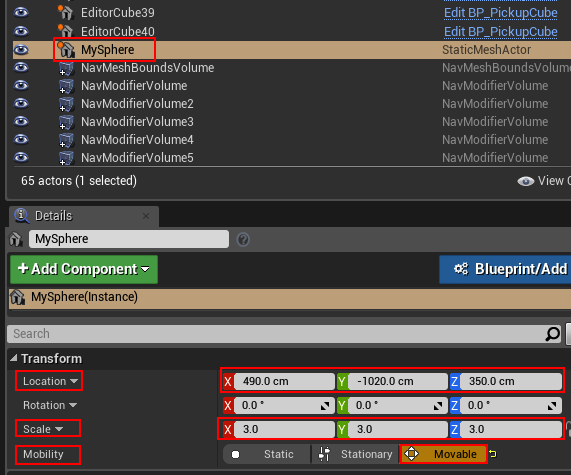
   1. 新增一個 Sphere, 取名為 MySphere, 調整位置大小後, 設為可移動.
   2. 開啟 BP_PickupCube

   3. 從 EventPickup 節點串接的結束開始

-----------------------------------------------------------------------------------------------

J. Send OSC Bundle

    1. Processing: send; Unreal: receive
        a. send by Processing:
import oscP5.*;
import netP5.*;

OscP5 oscP5;
NetAddress myRemoteLocation;

void setup() {
  size(400,400);
  frameRate(25);
  /* start oscP5, listening for incoming messages at port 12000 */
  oscP5 = new OscP5(this,12000);
 
  /* myRemoteLocation is a NetAddress. a NetAddress takes 2 parameters,
   * an ip address and a port number. myRemoteLocation is used as parameter in
   * oscP5.send() when sending osc packets to another computer, device,
   * application. usage see below. for testing purposes the listening port
   * and the port of the remote location address are the same, hence you will
   * send messages back to this sketch.
   */

  myRemoteLocation = new NetAddress("127.0.0.1",8000);
}

void draw() {
  background(0); 
  delay(500); //delay 0.5 second
  sendMyOSC();
}

//void mousePressed() {
void sendMyOSC() { 
  /* create an osc bundle */
  OscBundle myBundle = new OscBundle();
 
  /* createa new osc message object */
  OscMessage myMessage = new OscMessage("/position");
  myMessage.add(123.0); 
 
  /* add an osc message to the osc bundle */
  myBundle.add(myMessage);
 
  /* reset and clear the myMessage object for refill. */
  myMessage.clear();
 
  /* refill the osc message object again */

  myMessage.setAddrPattern("/position2");
  myMessage.add(456.0); 
 
  myBundle.add(myMessage);
 
  myBundle.setTimetag(myBundle.now() + 10000);
  /* send the osc bundle, containing 2 osc messages, to a remote location. */
  oscP5.send(myBundle, myRemoteLocation);
}


        b. received by Unreal:(Level Blueprint)

* * * * * * * * * * * * * * * * * * * * * * * * * * * * * * * * * * * * * * * * * * * * * * * *

    2. Unreal: send; Processing: receive
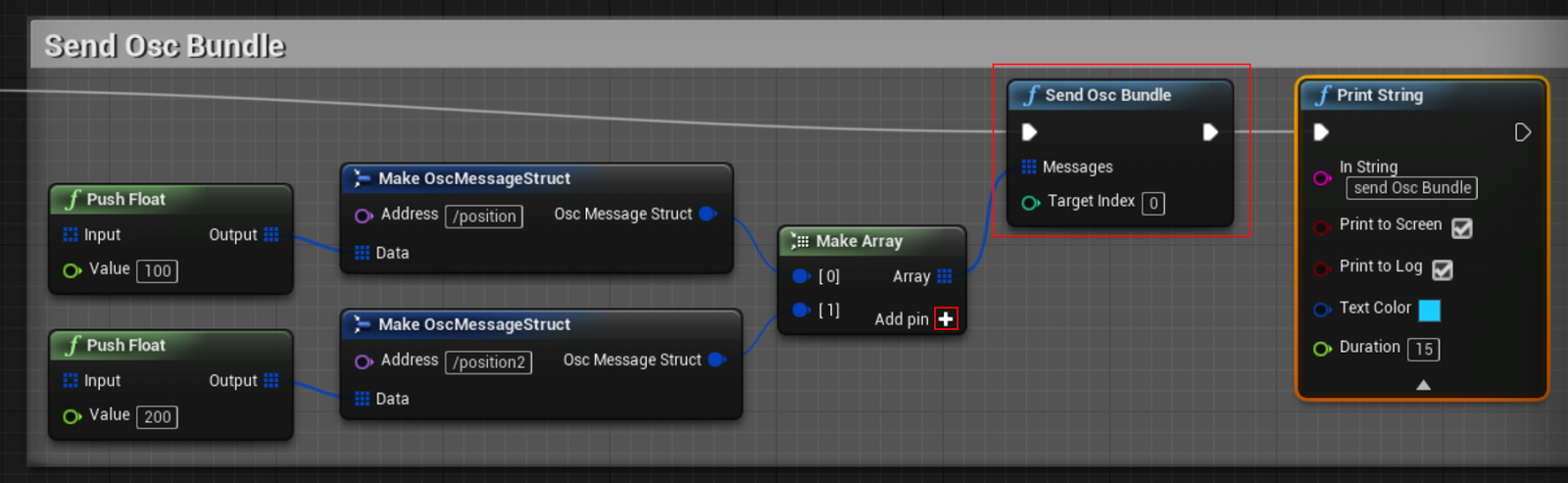
        a. send by Unreal: (might in BP_PickupCube)
        b. received by Processing:
import oscP5.*;
import netP5.*;

OscP5 oscP5;
NetAddress myRemoteLocation;

void setup() {
  size(400,400);
  frameRate(25);
  /* start oscP5, listening for incoming messages at port 12000 */
  oscP5 = new OscP5(this,12000);
 
  /* myRemoteLocation is a NetAddress. a NetAddress takes 2 parameters,
   * an ip address and a port number. myRemoteLocation is used as parameter in
   * oscP5.send() when sending osc packets to another computer, device,
   * application. usage see below. for testing purposes the listening port
   * and the port of the remote location address are the same, hence you will
   * send messages back to this sketch.
   */

  myRemoteLocation = new NetAddress("127.0.0.1",8000);
}

void draw() {
  background(0); 
}

/* incoming osc message are forwarded to the oscEvent method. */
void oscEvent(OscMessage theOscMessage) {
  /* print the address pattern and the typetag of the received OscMessage */
  print("### received an osc message.");
  print(" addrpattern: "+theOscMessage.addrPattern());
  print(" typetag: "+theOscMessage.typetag());
  println(" timetag: "+theOscMessage.timetag());
 
  // get values format:
  //int myInt = theOscMessage.get(0).intValue();  
  //float myFloat = theOscMessage.get(1).floatValue(); 

  //String myStr = theOscMessage.get(0).stringValue();
 
  if(theOscMessage.checkAddrPattern("/position") == true) {
    float myFloat = theOscMessage.get(0).floatValue(); // get the first osc argument
    println("/position myFloat: "+myFloat);
  }
  else if (theOscMessage.checkAddrPattern("/position2") == true) {
    float myFloat = theOscMessage.get(0).floatValue(); // get the first osc argument
    println("/position2 myFloat: "+myFloat);
  }   
}

        c. 結果:

-----------------------------------------------------------------------------------------------
K. Ray Casts(光線投射)
     1. Capsule Trace By Channel (Level Blueprint)


     2. Line Trace By Channel (MotionControllerPawn)


2016年6月23日 星期四

Unreal: OSC Plugin For UE4 ---- 4/4

since: 2016/06/23
update: 2016/11/25

reference:
1. [Plugin] OSC for UE4
2. monsieurgustav/UE4-OSC
3. UE4-OSCの送受信を行う - Qiita

4. I touchs: Unreal: OSC Plugin For UE4 ---- 1/4
5. I touchs: Unreal: OSC Plugin For UE4 ---- 2/4
6. I touchs: Unreal: OSC Plugin For UE4 ---- 3/4

Stage 4/4: OSC Sender

A. 新增 OSCSender Blueprint
    1. > Content Browser
        > AddNew > Blueprint Class > Actor
        > 命名為 OSCSender > 滑鼠雙擊打開

    2. 在 Event Graph 裡, 新增 Send Osc Node 並與 Event Tick 連結

    3. 新增取得 Actor 位置與 OSC Address 的變數:
        Type: Actor Reference    變數名稱: Source , 可編輯 
        Type: Name                      變數名稱: Address, 可編輯

-----------------------------------------------------------------------------------------------

B. OscSender Event Graph
     1. 由 GetActorLocation 取得 Source 的位置

     2. 將其座標拆成三個 float 當成 Send OscData

     3. Send OscAddress 值將在 Level Editor 裡設定

-----------------------------------------------------------------------------------------------

C. OSC Sendr 設定
    1. 回到 Level Editor, 將 OSCSenderContent Browser 拖拉到場景裡.
        在 OSCSender 選取的情況下, 到 Details
        > 將 OSCSource 設為: MyCube
       
> 將 OSCAddress 設為: /position

    2. 結果:
        進入關卡後, OSCSender 發送 MyCube 本身的位置給 OSCReceiver,
        而 OSCReceiver 將此座標更新給 MyCylinder.  
        > MyCylinder 跟隨著 MyCube 上下移動了.

-----------------------------------------------------------------------------------------------

D. 備註
     1. 可供測試用的 Processing code:(version 2.2.1)
/**
 * oscP5sendreceive by andreas schlegel
 * example shows how to send and receive osc messages.
 * oscP5 website at http://www.sojamo.de/oscP5
 */


import oscP5.*;
import netP5.*;

OscP5 oscP5;
NetAddress myRemoteLocation;

int receivePort = 8000;
String sendIP = "127.0.0.1";
int sendPort = 8000;

void setup() {
  size(400,400);
  frameRate(25);
  /* start oscP5, listening for incoming messages at port 12000 */
  oscP5 = new OscP5(this, receivePort);

  /* myRemoteLocation is a NetAddress. a NetAddress takes 2 parameters,
   * an ip address and a port number. myRemoteLocation is used as parameter in
   * oscP5.send() when sending osc packets to another computer, device,
   * application. usage see below. for testing purposes the listening port
   * and the port of the remote location address are the same, hence you will
   * send messages back to this sketch.
   */

  myRemoteLocation = new NetAddress(sendIP, sendPort);
}


void draw() {
  background(0); 
}

void mousePressed() {
  /* in the following different ways of creating osc messages are shown by example */
  OscMessage myMessage = new OscMessage("/position");

  //myMessage.add(123); /* add an int to the osc message */
  myMessage.add(100.0);
  myMessage.add(200.0);
  myMessage.add(300.0);

  /* send the message */
  oscP5.send(myMessage, myRemoteLocation);
}


/* incoming osc message are forwarded to the oscEvent method. */
void oscEvent(OscMessage theOscMessage) {
  /* print the address pattern and the typetag of the received OscMessage */
  print("### received an osc message.");
  print(" addrpattern: "+theOscMessage.addrPattern());
  println(" typetag: "+theOscMessage.typetag());

  theOscMessage.print();
}


    2.  一般情況下, OSC Receiver 端先啟動, 再啟動 OSC Sender

-----------------------------------------------------------------------------------------------

E. VR 事件觸發 send OSC

    1. 說明: 原本要使用 Trigger Volume 來處理事件的觸發, 但是在 VR 裡沒有作用,
                 下次再使用手把的方式來試試.

    2. 先做 "修正 VR 的地平線水平高度" 的處理:
        參考: I touchs: Unreal: Begin A Virtual Reality Project
        > C. 修正 VR 的地平線水平高度


    3. 匯入 .obj 檔, 來源: 2150_tid_rock.zip.zip

    4. 滑鼠雙擊 VR_Pawn , 進入編輯畫面.

    5. 新增 Static Mesh Component

    6. 取名為 StoneMesh 並拖拉到 Camera 下方

    7. 在 StoneMesh 點選的情況下, 到右邊 Details:
        調整 Location 位置, 與 Scale 數值, 並指定所要使用的 Static Mesh.
        說明: a. 此處的 Location 是相對於其 parent (Camera) 的座標.
                  b. 由於 Static Mesh 主要用來作事件觸發, 不需要顯示出來,
                      因此可以縮放到很小.

    8. 調整 Collision 下的:
        > 確認勾選: Generate Overlap Events
        > Collision Presets: Trigger

    9. 新增 Event:
        On Component Begin Overlap
        與 On Component End Overlap

   10. 結果:

   11.補上 Send OSC 的機制

   12. 新增一個 Sphere 到場景裡, 調整大小並靠近 PlayerStart 位置.

   13. 點選 Sphere, 在其 Details 裡, 調整 Collision 屬性: 
        > 確認勾選: Generate Overlap Events
        > Collision Presets: Trigger