2015年4月11日 星期六

Processing: Exceptions of Random

since: 2015/04/11
update: 2015/04/11
reference:
1. Processing.org

A. 說明:
     在 0 ~ 8 之間產生隨機的整數, 並排除特定的數字.

-----------------------------------------------------------------------------------------------

B. 實作:
    1. 開啟 Processing, 新增 Sketch 專案: exceptions_of_random

    2. 在 exceptions_of_random Sketch 專案目錄下新增 configStr.txt 檔案, 內容如下:
        # exception_nums
        5,8 

    3. 在 exceptions_of_random Sketch 專案編輯區, 寫入以下程式碼:
String[] configStr;
int[] exception_nums;

void setup()
{
  loadConfig();
  int my_num = randomFilter();
  println("my num = " + my_num);
}

void loadConfig() {
  configStr = loadStrings("configStr.txt"); 
  exception_nums = int(split(configStr[1], ','));

  for (int i=0; i<exception_nums.length; i++){
    println("exception_nums = " + exception_nums[i]);
  }
  println("");
}

int randomFilter() {
  int random_num = int(random(9));
  println("try random num = "+ random_num);

  for (int i=0; i<exception_nums.length; i++){
    if(random_num == exception_nums[i])
    {
      println("find exception num = "+ exception_nums[i] + "; try again .... \n");
      return randomFilter();
    }
  }
 
  return random_num;
}


-----------------------------------------------------------------------------------------------

C. 執行結果:

2015年4月6日 星期一

Raspberry Pi: Pi Mapper

since: 2015/04/09
update: 2015/04/09
reference:
1. Raspberry Pi: DHCP Wireless Network
2. Raspberry Pi: openFrameworks
3. PiMapper

-----------------------------------------------------------------------------------------------

A. 說明:
    1. Pi Mapper:
        Open source projection mapping tool that runs on the Raspberry Pi.

    2. 依照 Raspberry Pi: DHCP Wireless Network 與 Raspberry Pi: openFrameworks  
         做好前置作業.

-----------------------------------------------------------------------------------------------

B. 安裝 ofxPiMapper:
     1. 取得 ofxPiMapper 的安裝軟體.
         $ cd ~/openFrameworks/addons
         $ git clone https://github.com/kr15h/ofxPiMapper.git

     2. 安裝相依軟體:
         $ git clone https://github.com/jvcleave/ofxOMXPlayer.git && git clone https://github.com/bakercp/ofxIO.git

     3. (選擇性) 讓鍵盤與滑鼠運作正常:
         $ sudo apt-get update && sudo apt-get dist-upgrade
         $ sudo rpi-update // Raspberry Pi firmware update
         $ sudo reboot // 重新開機


     4. 編譯 ofxPiMapper:
         $ cd ~/openFrameworks/addons/ofxPiMapper/example
         $ make (約 1 個小時)
         $ make run // 執行

-----------------------------------------------------------------------------------------------

C. 模式與快捷鍵:
     a. 模式:(按下鍵盤的數字鍵)
          1. Presentation mode (預設, 展示上次儲存的)
          2. Texture mapping mode (調整外觀的紋理座標)
          3. Surface editing mode (選擇你所建立的外觀, 移動或變形)
          4. Source assignment mode (選擇外觀的來源)

          說明: 一般的步驟為: 
                   -> 先切換到模式3來選擇外觀.
                   -> 隨後, 便可以在模式2編輯紋理並於模式4選擇來源.

     b. 快捷鍵:
         鍵名                          功能
            i                               Show info
            t                               Add triangle surface
            q                              Add quad surface
            f                               Toggle fullscreen
            s                              Save composition
            BACKSPACE        Delete surface

           說明: 可藉由編輯 app.cpp 檔案來指定快捷鍵.

-----------------------------------------------------------------------------------------------

D. 備註:
     1. 預設外觀設定檔:
         /home/pi/openFrameworks/addons/ofxPiMapper/example/bin/data/defaultSurfaces.xml

     2. 使用者外觀設定檔:
         /home/pi/openFrameworks/addons/ofxPiMapper/example/bin/data/surfaces.xml

     3. 圖片來源檔位置: (支援: .png .jpg .jpeg)
         /home/pi/openFrameworks/addons/ofxPiMapper/example/bin/data/sources/images/
         image1.jpg, image2.jpg, image3.jpg ....

     4. 影片來源檔位置: (支援: .mp4 .h264 .mov .avi .mpeg)
         /home/pi/openFrameworks/addons/ofxPiMapper/example/bin/data/sources/videos/
         test.mov ....

     5. 讓 HDMI 影片的聲音正常播放:(修改以下二項設定後, 重新開機並編譯)
         a. /boot/config.txt
             ....
# uncomment to force a HDMI mode rather than DVI. This can make audio work in
# DMT (computer monitor) modes

hdmi_drive=2
             ....

         b. /home/pi/openFrameworks/addons/ofxPiMapper/src/Sources/VideoSource.cpp
            ....
            #ifdef TARGET_RASPBERRY_PI
            // Do things with the OMX player
            ....
            //settings.enableAudio = false;        //default true, save resources by disabling

            settings.enableAudio = true;        //default true, save resources by disabling           
            ....

Raspberry Pi: openFrameworks

since: 2015/04/06
update: 2015/04/06
reference:
1. Raspberry Pi: DHCP Wireless Network
2. Getting your Raspberry Pi ready for openFrameworks

A. 說明:
     1. 先依照 Raspberry Pi: DHCP Wireless Network , 安裝好 Pi, 並設好網路環境. 

     2. 確認目前所安裝的 Raspbian "wheezy" 是 "hard float", 而非 "soft-float" 版本.
          -> "hard float" 版本才會有 /lib/arm-linux-gnueabihf 這目錄;
     
"soft-float" 版本才會有 /lib/arm-linux-gnueabi 目錄.

         p.s. Hard float just means the floating point calculations are done by
                on chip hardware rather than being emulated by software.


-----------------------------------------------------------------------------------------------

B. 設定 Pi:

     1. 編譯 openFrameworks 前, 須先確認 CPU 有 192MB 的RAM可使用.
         $ free -h

         $ sudo raspi-config
           a. 選擇: 1. Expand Filesystem -> Select -> Enter

           b. Ok > Enter 

           c. 選擇: 8. Advanced Options -> Select -> Enter

           d. 選擇: A3. Memory split: Change the amount of memory made available
                                                             to the GPU -> Select -> Enter

           e. 輸入: 64 -> OK -> Enter
               (限制分配給 GPU 的記憶體; 提供較多的記憶體給 CPU 使用)

           f. Yes -> Enter (重新開機)


******************************************************************

    2. 更新套件:
         $ sudo apt-get clean
         $ sudo apt-get update
         $ sudo apt-get upgrade

-----------------------------------------------------------------------------------------------

C. 下載 openFrameworks
     配合 Pi 一代, 使用 Linux armv6 版本的 openFrameworks, 底下會下載
    
openFrameworks 並解壓縮到 /home/pi/openFrameworks 目錄內.

      $ cd        (回到 /home/pi)

      $ curl -O http://www.openframeworks.cc/versions/v0.8.4/of_v0.8.4_linuxarmv6l_release.tar.gz

      $ mkdir openFrameworks

      $ tar vxfz of_v0.8.4_linuxarmv6l_release.tar.gz -C openFrameworks --strip-components 1

-----------------------------------------------------------------------------------------------

D. 編譯 openFrameworks
     $ cd /home/pi/openFrameworks/scripts/linux/debian_armv6l

     $ sudo ./install_dependencies.sh

     $ make Release -C /home/pi/openFrameworks/libs/openFrameworksCompiled/project

     p.s. 由於已經編譯好 openFrameworks 了, 我們可以將之前限制分配給 GPU 的
            64 MB 記憶體, 調整為 128 MB. (參考: B. 設定 Pi)

-----------------------------------------------------------------------------------------------

E. 測試
     $ cd /home/pi/openFrameworks/examples/

     $ ls -al

     $ cd graphics/polygonExample/

     $ make

 
$ make run (須在 Pi 上才看得到結果)


-----------------------------------------------------------------------------------------------


F. 建立空的 openFrameworks 專案
    說明: 你的 App 必須位於 openFrameworks 目錄下保持三層目錄.

    $ cp -R /home/pi/openFrameworks/examples/empty/emptyExample /home/pi/openFrameworks/apps/myApps/myTestApp

    $ cd /home/pi/openFrameworks/apps/myApps/myTestApp

    $ make

    $ make run (須在 Pi 上才看得到結果)

    (空白的畫布)

2015年4月5日 星期日

Raspberry Pi: DHCP Wireless Network

since: 2015/04/05
update: 2015/04/05
reference:
1. Raspberry Pi
2. 雄: Raspberry PI : wireless network 無線網路


A. 安裝作業系統影像檔
     1. 下載 Raspbian 映像檔, 並解壓縮成: 2015-02-16-raspbian-wheezy.img

     2. 把 SD卡(在此為 16GB)放入 Mac 的讀卡機中, 利用 SD Card Formatter,
         將其格式化為 FAT32.

     3. Apple -> 關於這台 Mac -> 系統報告... -> 讀卡機:
         ->確認其 BSD 名稱: disk2

     4. 利用磁碟工具程式, 將剛剛新增的分割區 Unmount (不是退出),
         之後才可以將影像檔寫入.

     5. 從終端機執行: (約 20 ~ 45 分鐘)
         $ cd /Lanli/RD/sources/
         $ sudo dd bs=1m if=2015-02-16-raspbian-wheezy.img of=/dev/disk2
         ....
         3125+0 records in
         3125+0 records out
         3276800000 bytes transferred in 2651.442033 secs (1235856 bytes/sec)
         $


     6. 將裝好作業系統的 SD 卡, 放到 Pi 的 SD卡槽裡, 幫 Pi 接上無線網卡,
         鍵盤, 螢幕等最後接上電源時便會啟動開機.

     7. 登入系統後, 先將預設帳號 pi 更改密碼:
         $ sudo passwd pi
                 
-----------------------------------------------------------------------------------------------

B. 確認系統有抓倒你的無線網卡:
     1. Pi 支援的無線網卡: RPi USB Wi-Fi Adapters - eLinux.org
         p.s. 官方推薦的網卡: EDIMAX EW-7811Un (體積嬌小)

     2. 登入 Pi 後, 執行以下指令:
         $ sudo lsusb
            ....
            .... D-Link System DWA-110 Wireless G Adapter(rev.A1)

-----------------------------------------------------------------------------------------------

C. 修改設定檔
     1. /etc/network/interfaces

原始:
auto lo
iface lo inet loopback
iface eth0 inet dhcp
allow-hotplug wlan0
iface wlan0 inet manual
wpa-roam /etc/wpa_supplicant/wpa_supplicant.conf
iface default inet dhcp

改成:
auto lo
iface lo inet loopback
iface eth0 inet dhcp
auto wlan0
allow-hotplug wlan0
iface wlan0 inet dhcp
wpa-conf /etc/wpa_supplicant/wpa_supplicant.conf
iface default inet dhcp

******************************************************************

     2. /etc/wpa_supplicant/wpa_supplicant.conf

原始:
ctrl_interface=DIR=/var/run/wpa_supplicant GROUP=netdev
update_config=1

改成:
ctrl_interface=DIR=/var/run/wpa_supplicant GROUP=netdev
update_config=1

network={
ssid="無線網路ID"
proto=RSN
key_mgmt=WPA-PSK
pairwise=CCMP TKIP
group=CCMP TKIP
psk="無線網路密碼"
}


-----------------------------------------------------------------------------------------------

D. 重啟各網路界面

     sudo /etc/init.d/networking restart

     查詢個網路介面的 IP:
     ifconfig -a
     ....
     wlan0 ....
     inet addr:192.168.1.14  Bcast:192.168.1.255  Mask:255.255.255.0
     ....

-----------------------------------------------------------------------------------------------

E. 啟用遠端 SSH 登入功能:

    1. $ sudo raspi-config

    2. 選擇: 8 Advanced Options

    3. 選擇: A4 SSH

    4. 選擇: Enable

    5. OK

    6. Finish

-----------------------------------------------------------------------------------------------

F. SSH 遠端登入

    $ ssh pi@192.168.1.14
    ....
    Last login: Sun Apr  5 10:33:55 2015 from 192.168.1.15
    pi@raspberrypi ~ $    

Processing: Open Kinect

since: 2015/04/05
update: 2015/04/05
reference:
1. Libraries \ Processing.org
2. Getting Started with Kinect and Processing
3. OpenKinect

A. 軟體安裝:
     1. Processing 2.1 以上, 在此使用 3.0a5 版

     2. OpenKinect-for-Processing,
          -> 將下載的 openkinect_processing.zip, 解壓後放到 Mac 的:
              文件 > Processing > libraries 目錄下.

     3. OpenKinect:
         a. 安裝 MacPorts:
              The MacPorts Project -- Download & Installation
              (1). 安裝 Xcode
              (2). 安裝 Xcode Command Line Tools
                     -> 安裝完 Xcode 後, 於終端機執行: xcode-select --install
              (3). 安裝 MacPorts: for OS X 10.10 Yosemite
                     -> 安裝完後, 執行: sudo port -v selfupdate 讓 MacPorts 更新到最新版本.

         b. 安裝以下軟體:
             sudo port install git
             sudo port install libtool
             sudo port install libusb            

         c. 最後, 到工作目錄下執行:
             cd /Lanli/git/
             git clone git://github.com/OpenKinect/libfreenect.git

-----------------------------------------------------------------------------------------------

B. 測試:
     1. Mac 接上 Kinect(需再接電源) 後, 用 Processing 開啟 openkinect_processing
         函式庫
目錄下的 Demo 程式:

        
Mac: 文件 -> Processing -> libraries -> openkinect_processing
                  -> examples -> ...


   2. 例子之一: AveragePointTracking

   3. 例子之二: DepthThreshold

   4. 例子之三: RGBDepthTest

2015年4月3日 星期五

Processing: SimpleOpenNI

since: 2015/04/03
update: 2015/04/03
reference:
1. Libraries \ Processing.org
2. simple-openni - OpenNI library for Processing


A. 說明:
     目前在 Processing 社群中, 會員所貢獻出來可與 Kinect 作互動應用的函式庫有二個:
     SimpleOpenNI 與 Open Kinect for Processing. 這篇是說明 SimpleOpenNI 在 Mac
     上的開發環境設置, 由於比較簡單, 只會跑跑測試程式, 就當成是作記錄好了.

-----------------------------------------------------------------------------------------------

B. 在 Processing 上安裝 SimpleOpenNI 函式庫:
     1. Processing 版本需大於 2.0 , 在此(測試)使用 3.0a5 版:
         menu: Sketch -> Import Library... -> Add Library...

     2. 在搜尋過濾框中輸入: SimpleOpenNI, 即會出現 SimpleOpenNI 函式庫.

     3. 點選底下的 SimpleOpenNI 函式庫 , 並按下 Install, 待安裝完成後,
         請重新啟動 Processing.

     4. 可以查看函式庫安裝的位置:
         Mac: Documents -> Processing -> libraries -> SimpleOpenNI

-----------------------------------------------------------------------------------------------

C. 測試:
     1. Mac 接上 Kinect(需再接電源) 後, 用 Processing 開啟 SimpleOpenNI 函式庫
         目錄下的 Demo 程式:

        
Mac: Documents -> Processing -> libraries -> SimpleOpenNI
                  -> examples -> OpenNI -> ...


   2. 例子之一: DepthImage

   3. 例子之二: DepthInfrared

   4. 例子之三: DepthMap3d

2015年3月28日 星期六

Processing: Gamma Correction

since: 2015/03/28
update: 2015/03/28
reference:
1. Processing.org
2. The Issue | LED Tricks: Gamma Correction | Adafruit Learning System


A. 前言:
     最近開始接觸 Processing, 把學習中遇到的一些問題與解決辦法記錄下來,
     這篇文章主要是說明在 Processing 中作伽瑪校正(Gamma correction)的方式. 
     目前的螢幕與影像相關應用程式都會作伽瑪校正, 這邊主要是應用在對特定的
     色偏對象(通常是螢幕) 作微調的處理.

-----------------------------------------------------------------------------------------------

B. 說明:
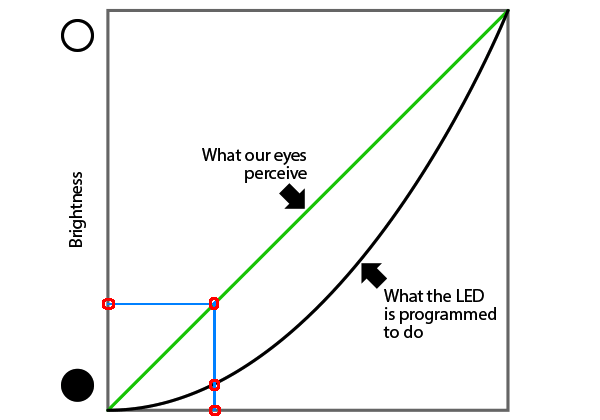
    1. 人眼對於光線的感受能力具有非線性的高動態範圍, 在較亮處與較暗處皆可
        看到物體的細節.

    2. 如下圖所示:
         水平軸方向為 LED 的發光功率, 黑色的斜線為其線性的亮度值, 但對應到人眼
         所感受到的光線卻是紅色的曲線. 垂直軸則是人眼所實際感受到的亮度值.
         (圖片來源: https://learn.adafruit.com/led-tricks-gamma-correction/)

         而在其顏色的灰階圖中, 左端有大量的不連續, 而右端幾乎是無法辨別了.

         (圖片來源: https://learn.adafruit.com/led-tricks-gamma-correction/)

    3. 解決方式是在我們的視覺上作非線性的感知補賞: 套用一個反函數, 即是作伽瑪校正.

         (圖片來源: https://learn.adafruit.com/led-tricks-gamma-correction/)

         現在灰階圖的每個階調之間更平滑了.
         (圖片來源: https://learn.adafruit.com/led-tricks-gamma-correction/)

-----------------------------------------------------------------------------------------------

C. 新增 Processing sketch:

    1. 下載並安裝 Processing, 在此使用 Pre-Releases 3.0a5 Mac OS X 版.
        底下所要製作的伽瑪校正對應表(gammaTableCorrection), 會將線性輸入值
        轉換成非線性的經伽瑪校正輸出值.

    2. 開啟 Processing 新增一個 sketch 名稱存成 gamma_correction.

    3. 首先, 畫一個填滿灰色的矩形.
// simulate original input data
int colorR = 128;
int colorG = 128;
int colorB = 128;

void setup() {
  size(200, 200);
}

void draw() {
    fill(colorR, colorG, colorB);
    rect(25, 25, 150, 150);
}


-----------------------------------------------------------------------------------------------

D. 新增參數設定檔:
    1. 在 sketch 目錄內, 新增一個參數設定檔: config.txt

    2. 內容為:
/* start: gamma-correction */
// Red Correction factor(gammaRed)
2.8

// Green Correction factor(gammaGreen)
2.8

// Blue Correction factor(gammaBlue)
2.8

// Top end of INPUT range(max_in)
255

// Top end of OUTPUT range Red(max_out_red)
255

// Top end of OUTPUT range Green(max_out_green)
255

// Top end of OUTPUT range Blue(max_out_blue)
255
/* end: gamma-correction */


說明:
(1). R / G  / B Correction factor == 1.0  ---> no correction (不做校正)
(2). Correction factor 值越高, 中間色調越暗; 值越低, 中間色調越亮.
(3). Correction factor 預設值 2.8, 僅為測試用, 不太科學. 
(4). max_in 與 max_out(R / G / B) 用來設定輸入與輸出的最大值. 

-----------------------------------------------------------------------------------------------

E. 伽瑪校正處理:
    1. 新增以下程式碼到 sketch 裡:
// simulate original input data
int colorR = 128;
int colorG = 128;
int colorB = 128;


// ----------------------------------------------------
//@for gamma-correction
// load config Strings
String[] configLines;

// begin: gamma-correction table (if value == 1.0, no correction)
float gammaRed = 1.0; // Red Correction factor
float gammaGreen = 1.0; // Green Correction factor
float gammaBlue = 1.0; // Blue Correction factor

// default INPUT & OUTPUT range
int max_in = 255; // Top end of INPUT range
int max_out_red = 255; // Top end of OUTPUT range Red
int max_out_green = 255; // Top end of OUTPUT range Green
int max_out_blue = 255; // Top end of OUTPUT range Blue

int[] gammaTableRed = new int[256];
int[] gammaTableGreen = new int[256];
int[] gammaTableBlue = new int[256];
// end: gamma-correction table
// ----------------------------------------------------


void setup() {
  size(200, 200);

 
  println("original colorR = " + colorR);
  println("original colorG = " + colorG);
  println("original colorB = " + colorB);
 
  //@for gamma-correction
  // load gamma-correction parameters
  loadConfig();
 
  // Red gamma-correction
  gammaTableRed = gammaTableCorrection(gammaRed, max_out_red);
  // println("gammaTableRed: ");
  // for(int i = 0; i < gammaTableRed.length; i++) {
  //   println(gammaTableRed[i]);
  // }
 
  // Green gamma-correction
  gammaTableGreen = gammaTableCorrection(gammaGreen, max_out_green);
  // println("gammaTableGreen: ");
  // for(int i = 0; i < gammaTableGreen.length; i++) {
  //   println(gammaTableGreen[i]);
  // } 
 
  // Blue gamma-correction
  gammaTableBlue = gammaTableCorrection(gammaBlue, max_out_blue);
  // println("gammaTableBlue: ");
  // for(int i = 0; i < gammaTableBlue.length; i++) {
  //   println(gammaTableBlue[i]);
  // }    
 
  colorR = gammaTableRed[colorR];
  colorG =
gammaTableGreen[colorG];
  colorB =
gammaTableBlue[colorB];
   
  println("corrected colorR = " + colorR);
  println("corrected colorG = " + colorG);
  println("corrected colorB = " + colorB);   

}

void draw() {
    fill(colorR, colorG, colorB);
    rect(25, 25, 150, 150);
}


//@for gamma-correction
// gamma Table Correction
int[] gammaTableCorrection(float _gamma, int _maxOut) { 
  int[] gammaTableTmp = new int[256];
 
  for(int i = 0; i <= max_in; i++) {
    gammaTableTmp[i] = (int)((int)(pow((float)i / (float)max_in, _gamma) * _maxOut + 0.5));
  }
 
  return gammaTableTmp;
}

void loadConfig(){
  println("load config data ....");
  configLines = loadStrings("config.txt");

    if(configLines.length > 21) {
      println("getting data from config ....");
     
      // Gamma Correction factor
      gammaRed = Float.parseFloat(configLines[2]);
      println("gammaRed = " + gammaRed);
     
      gammaGreen = Float.parseFloat(configLines[5]);
      println("gammaGreen = " + gammaGreen);     
     
      gammaBlue = Float.parseFloat(configLines[8]);
      println("gammaBlue = " + gammaBlue);     
     
      // Top end of INPUT range
      max_in = int(configLines[11]);
      println("max_in = " + max_in);
     
      // Top end of OUTPUT range Red
      max_out_red = int(configLines[14]);
      println("max_out_red = " + max_out_red);
     
      // Top end of OUTPUT range Green
      max_out_green = int(configLines[17]);
      println("max_out_green = " + max_out_green);
     
      // Top end of OUTPUT range Blue
      max_out_blue = int(configLines[20]);
      println("max_out_blue = " + max_out_blue);
    }
    else {
      println("warnning! load config data error; use default data....");
    }
}


-----------------------------------------------------------------------------------------------

F. 實驗結果:
    實驗一: 同時將 RGB 的 gamma 值調小(設為 0.5), 灰色變淡.


    實驗二: 僅將 B 的 gamma 值調小(設為 0.8), 變成靛色了.